
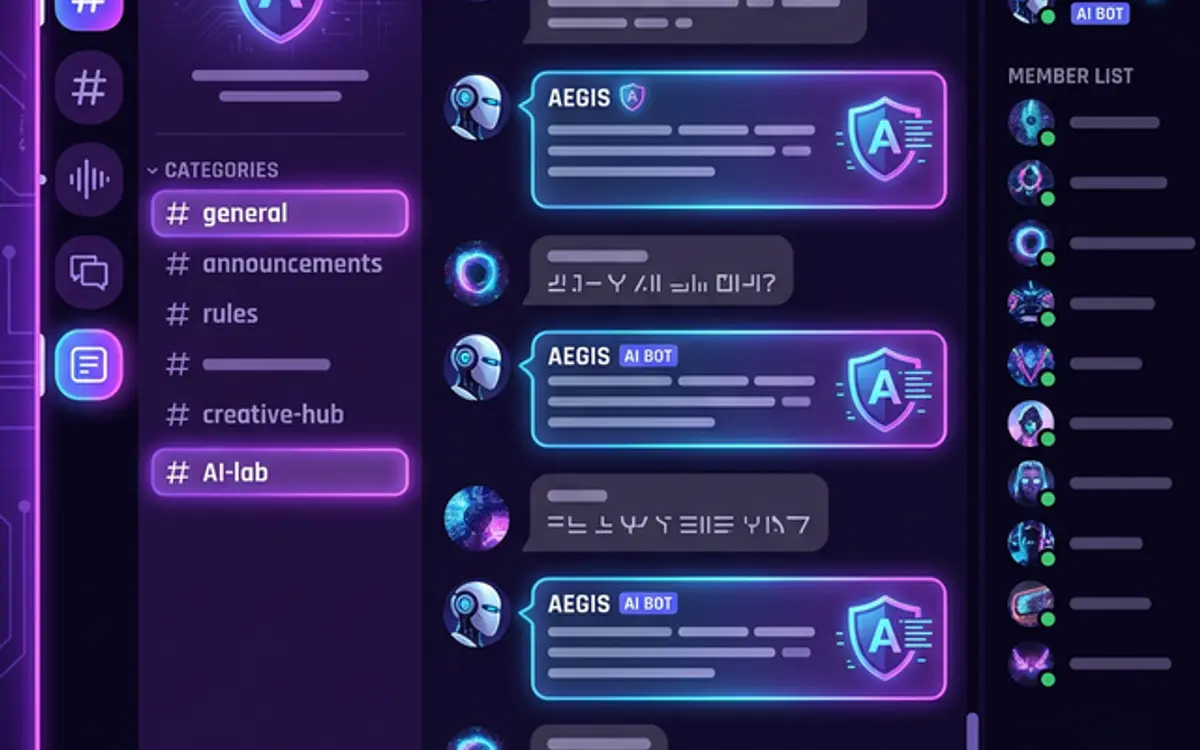
Discord isn’t just for gaming anymore — it’s where development teams, open-source communities, and businesses collaborate daily. Adding OpenClaw as a Discord bot gives your server an always-on AI assistant that can answer questions, moderate content, generate code, and automate administrative tasks.
In this guide, we’ll set up a fully functional OpenClaw-powered Discord bot from scratch.
Prerequisites
- OpenClaw installed and running (installation guide)
- A Discord account with server admin permissions
- Node.js 22+
Step 1: Create a Discord Application
- Go to the Discord Developer Portal
- Click New Application
- Name it (e.g., “OpenClaw Assistant”)
- Navigate to the Bot section in the sidebar
- Click Add Bot → Yes, do it!
- Under Privileged Gateway Intents, enable:
- Message Content Intent ✅
- Server Members Intent ✅
- Presence Intent (optional)
Copy Your Bot Token
Click Reset Token and copy the generated token. Store it securely — you’ll need it next.
MTIzNDU2Nzg5.XXXXXX.your-bot-token-hereStep 2: Invite the Bot to Your Server
- Go to OAuth2 → URL Generator in the Developer Portal
- Under Scopes, select:
botapplications.commands
- Under Bot Permissions, select:
- Send Messages
- Read Message History
- Embed Links
- Attach Files
- Use Slash Commands
- Manage Messages (for moderation)
- Copy the generated URL and open it in your browser
- Select your server and authorize
Step 3: Connect Discord to OpenClaw
openclaw channel add discordThe CLI will prompt you:
? Enter your Discord Bot Token: MTIzNDU2Nzg5.XXXXXX.your-bot-token-here
? Enter your Discord User ID: 123456789012345678
? Bot prefix (e.g., !ask): !claw
? Enable slash commands? (Y/n): Y
Or configure manually:
# ~/.openclaw/config.yaml
channels:
  discord:
    enabled: true
    bot_token: "${DISCORD_BOT_TOKEN}"
    # Your personal Discord user ID (right-click → Copy User ID)
    admin_users:
      - "123456789012345678"
    # Bot behavior
    prefix: "!claw"
    slash_commands: true
    # Which channels the bot listens in (empty = all)
    allowed_channels:
      - "general"
      - "dev-chat"
      - "bot-commands"
    # Mention-based activation
    respond_to_mentions: true
    # Thread support
    create_threads: true
    thread_auto_archive: 60  # minutes
Restart the gateway:
openclaw gateway restartStep 4: Test Your Bot
Head to your Discord server and try these:
Prefix Command
!claw What is the best sorting algorithm for a nearly-sorted array?Mention
@OpenClaw Assistant explain how async/await works in JavaScriptSlash Command
/ask question: How do I set up a reverse proxy with NGINX?The bot will respond directly in the channel with a formatted answer.
Step 5: Configure Slash Commands
Register custom slash commands for common tasks:
# ~/.openclaw/config.yaml
channels:
  discord:
    commands:
      - name: "ask"
        description: "Ask the AI assistant a question"
        options:
          - name: "question"
            type: "string"
            required: true
            description: "Your question"

      - name: "code"
        description: "Generate code in a specific language"
        options:
          - name: "language"
            type: "string"
            required: true
            choices: ["javascript", "python", "typescript", "rust", "go"]
          - name: "prompt"
            type: "string"
            required: true
            description: "Describe the code you need"

      - name: "review"
        description: "Review a code snippet"
        options:
          - name: "code"
            type: "string"
            required: true
            description: "Paste the code to review"

      - name: "summarize"
        description: "Summarize the last N messages"
        options:
          - name: "count"
            type: "integer"
            required: false
            description: "Number of messages to summarize (default: 50)"
Sync commands with Discord:
openclaw discord sync-commandsStep 6: Code Generation with Syntax Highlighting
OpenClaw formats Discord responses with proper code blocks. When users ask for code, the response uses Discord’s markdown:
/code language: python prompt: write a FastAPI endpoint that accepts JSON and validates with PydanticThe bot responds with properly highlighted code:
Here's your FastAPI endpoint:

```python
from fastapi import FastAPI
from pydantic import BaseModel, EmailStr

app = FastAPI()

class UserCreate(BaseModel):
    name: str
    email: EmailStr
    age: int

@app.post("/users")
async def create_user(user: UserCreate):
    return {
        "message": f"User {user.name} created",
        "data": user.model_dump()
    }
```

Run it with: `uvicorn main:app --reload`
Step 7: Channel-Specific Behaviors
Configure different AI personalities or tool access per channel:
channels:
  discord:
    channel_config:
      "dev-chat":
        system_prompt: "You are a senior software engineer. Be technical and precise."
        tools: [file_access, command_execution, web_search, browser]

      "general":
        system_prompt: "You are a friendly community assistant. Keep responses concise."
        tools: [web_search]
        max_response_length: 500

      "support":
        system_prompt: "You are a customer support agent. Be empathetic and solution-oriented."
        tools: [web_search, file_access]
Step 8: Moderation Features
OpenClaw can help moderate your Discord server:
# ~/.openclaw/skills/discord-moderator.yaml
name: discord-moderator
description: "AI-powered content moderation for Discord"
version: 1.0

channel: discord

instructions: |
  Monitor all messages in the server for:

  1. **Spam detection**: Repeated messages, excessive caps, link spam
  2. **Toxicity filtering**: Harassment, hate speech, threats
  3. **Self-promotion**: Unauthorized advertising or link dropping

  Actions:
  - Low severity: Reply with a gentle reminder about server rules
  - Medium severity: Delete the message and DM the user a warning
  - High severity: Delete the message, time out the user for 10 minutes,
    and log the incident in the #mod-log channel

  RULES:
  - Never ban users — only timeout and report to human moderators
  - Log all moderation actions to #mod-log with context
  - If unsure, err on the side of NOT moderating
Step 9: Conversation Threading
Keep long conversations organized with automatic thread creation:
channels:
  discord:
    threading:
      enabled: true
      auto_create: true           # Create thread for multi-turn conversations
      thread_name_from_topic: true # Name threads based on the question
      archive_after: 60           # Auto-archive after 60 min of inactivity
      max_thread_messages: 50     # Cap thread length
When a conversation goes beyond 2 messages, OpenClaw automatically creates a thread to keep the main channel clean.
Troubleshooting
Bot Online but Not Responding
# Check channel permissions
openclaw diagnostics --channel discord

# Common fix: ensure Message Content Intent is enabled
# Discord Developer Portal → Bot → Privileged Gateway Intents
Slash Commands Not Appearing
# Force re-sync
openclaw discord sync-commands --force

# Note: Slash commands can take up to 1 hour to propagate globally
# For instant testing, use guild-specific commands
openclaw discord sync-commands --guild YOUR_GUILD_ID
Rate Limiting
Discord enforces strict rate limits. Configure OpenClaw to respect them:
channels:
  discord:
    rate_limit:
      messages_per_channel_per_minute: 5
      global_messages_per_minute: 30
Conclusion
A self-hosted AI bot on Discord gives your community or team instant access to a powerful assistant — without relying on third-party bot services that may read your data. OpenClaw keeps everything on your infrastructure, under your control.
Want a custom Discord bot for your community or business? Contact our team — we build AI-powered Discord solutions that scale.